When people think of process modelling, they think of boxes and arrows. The Process Studio Editor draws those too. Above all, though, it records what is attached to the step – role, system, requirement, risk, test case, time and approval – and shows it in a way you can work with. A tour.
Getting started: “What would you like to do?”
When you open the Editor, you first see four routes: start from scratch (an empty process diagram or organisation chart, or load an existing BPMN file), start from a template, pick up where you left off – or work together with others. If you would rather talk than draw, describe the process to the TAOM Agent in your own words; how that works is explained in the post Clarify first, then build.
Drawing uses the complete BPMN 2.0 symbol set: tasks, events, gateways, sub-processes, pools and lanes. On top of that come organisation chart, process map, system landscape and RACI matrix. Layout tools align to the grid, arrange the lanes and route connections at right angles. Phases group steps into sections – the structure that later reappears in the target systems.
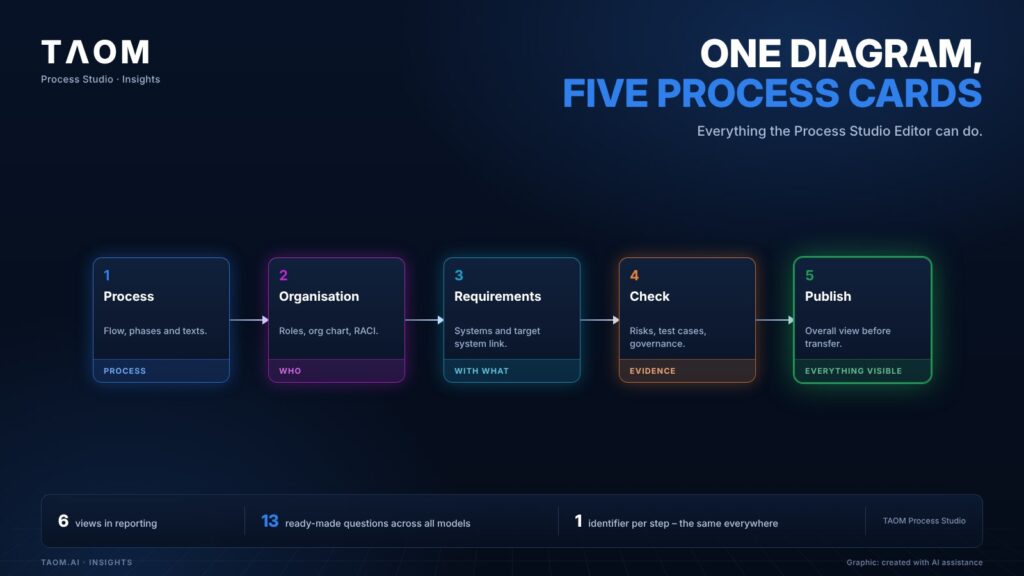
One diagram, five process cards
At the top of the Editor there are five process cards. They show the same diagram from five angles: the badges on the shapes and the area below the diagram change with them, the model stays the same. Keys 1 to 5 switch between them.
Next to the process cards is the status of the model: draft, published, or published with later changes. If you are working on a process that has already been published, you see it at once – because then every change affects the target systems.
What is attached to the step
In TAOM, a box in the diagram is more than a label. The attribute panel shows for each step:
- A stable identifier, derived from the enterprise process model – for example P2M.01.02.01-AC001. It appears in the model, in the BPMN file, in the issue and on the documentation page in the target system.
- Role, system and transaction: who does it, in what and with which function.
- WRICEF and category: standard or extension, and of what kind.
- Test relevance, risk, control and test case – with test result and approval status.
- Description per language, switchable at the step.
- Provenance and approval: created by people, generated or modified by AI – with the person and time of approval.
Which key figures the Editor shows
Below the diagram are the key figures for the selected process card – the same question as the badges on the shape, just across the whole model: who is responsible, which systems are attached, what needs checking, what has been reported? Model reporting shows the open model and lets you edit the steps directly. Across all models in an area of the enterprise process model, reporting does the calculations.
| Key figure | Where it comes from |
|---|---|
| Test status per step: passed, open, failed | Test cases and test runs at the step |
| Risks by priority, risk without control | Risk assessment at the step |
| Processing, waiting and lead time with median, 90th percentile and number of cases | Process mining at the step |
| Plan and actual per activity and role | Project times at the step |
| Approval status, responsibility by RACI, gaps | Roles, organisation and field control |
| Open tasks per person or role with remaining effort | Approvals, tests and project times |
The figures are presented as cards, bars, donut charts, heatmaps and Kanban boards. Every figure can be clicked and opens the steps behind it – and from there you go straight into the model. The principle: only what is there gets counted, and every total says what it adds up.
Questions across all models
“Check & find” asks the open model ready-made questions; the attribute directory asks them across the entire inventory. There are thirteen, seven of which target gaps: test-relevant but without a test case; risk without control; AI-generated but not approved; description in one language only. A hit in another model opens alongside: on the left for viewing, on the right your own Editor.
Together on the same model
With Process Studio Team, several people work in the same diagram at the same time. Each person has a colour and initials at the element they are currently working on. Anyone joining knocks first. An element someone is editing is locked for the others – with their name. Changes arrive without reloading; nothing is merged by hand. Across company boundaries, you invite guests to individual models.
Hand over without copying
- Target systems (e.g. Jira, Confluence): epic, stories per phase, issues per step and the page tree with specifications – from the same model.
- HTML and PDF: evidence to pass on, with a provenance note and QR code.
- BPMN file: all TAOM details are in the file; it also opens in other tools.
- Interface: retrieve processes and attributes programmatically.
Every file edited in TAOM carries a signed provenance seal (SHA-256) and openly labels AI involvement as “AI GENERATED” or “AI MODIFIED”. Provenance can be verified even without access to TAOM.
To be honest
The Editor describes processes; it does not execute them – it is not a workflow engine. Comments directly on a shape have not been built yet. And not every feature is in every tier: the feature matrix shows what is included where. You can try the Editor without signing in.
In short
The Process Studio Editor draws BPMN – and records what is attached to the step. Five process cards show the same model for flow, organisation, requirements, checking and publishing; key figures and questions across all models turn it into a working basis rather than a picture.
About TAOM: TAOM is the method and platform of Traniva AG (Switzerland) for people, processes and AI working together – with Process Studio Editor and Viewer, TAOM Training and Support. Our principle: AI supports, responsibility stays with people.
Read more: Process Studio – capabilities at a glance · Try the Editor · User guide · Learning video: Creating a process model · Learning video: The enterprise process model
Leave a Reply