Enterprise governance – permissions, approvals and data control down to field level
Who may do what – visible to everyone.
For each customer, a matrix defines which field on the process step is mandatory, who may change it and who may approve it – and what happens to missing information when a step is published or approved.
Field control applies to all registered users – only anonymous use without an account is excluded. Every user of the customer sees the rules; only the administrator may change them, and every change is logged.
Three levels of control
Who may change and approve which field, how a step moves from draft to approval and what goes to which target system depending on protection needs – to click through.
| Field on the process step | Setting | May change | May approve |
|---|---|---|---|
| Name | Mandatory | ✓ | |
| Description | Optional | ✓ | |
| Category | Mandatory | ✓ | |
| Risk (GAMP 5) | Optional | – | |
| Test relevance | Optional | – | |
| Test cases | Optional | ✓ | |
| Review status | managed by TAOM | TAOM | – |
| Model version | managed by TAOM | TAOM | – |
| Field on the process step | Setting | May change | May approve |
|---|---|---|---|
| Name | Mandatory | ✓ | |
| Description | Optional | ✓ | |
| Category | Mandatory | ✓ | |
| Risk (GAMP 5) | Optional | ✓ | |
| Test relevance | Optional | ✓ | |
| Test cases | Optional | ✓ | |
| Review status | managed by TAOM | TAOM | ✓ |
| Model version | managed by TAOM | TAOM | ✓ |
| Field on the process step | Setting | May change | May approve |
|---|---|---|---|
| Name | Mandatory | – | |
| Description | Optional | – | |
| Category | Mandatory | – | |
| Risk (GAMP 5) | Optional | ✓ | |
| Test relevance | Optional | ✓ | |
| Test cases | Optional | – | |
| Review status | managed by TAOM | TAOM | ✓ |
| Model version | managed by TAOM | TAOM | – |
| Field on the process step | Setting | May change | May approve |
|---|---|---|---|
| Name | Mandatory | – | |
| Description | Optional | – | |
| Category | Mandatory | – | |
| Risk (GAMP 5) | Optional | – | |
| Test relevance | Optional | ✓ | |
| Test cases | Optional | ✓ | |
| Review status | managed by TAOM | TAOM | – |
| Model version | managed by TAOM | TAOM | – |
Example configuration. Each company sets up its own matrix – 119 fields, roles from the project organisation, every change logged.
In addition, for whole models: versions with draft → for approval → approved or rejected, with its own rule “Four eyes for model versions”.
| Target | What goes out – protection need “Public” |
|---|---|
| HTML/PDF export | complete |
| Documentation (e.g. Confluence) | complete |
| Ticket (e.g. Jira) | complete |
| SAP Cloud ALM | complete |
| Teams/Slack channels | complete |
| Target | What goes out – protection need “Internal” |
|---|---|
| HTML/PDF export | complete |
| Documentation (e.g. Confluence) | complete |
| Ticket (e.g. Jira) | complete |
| SAP Cloud ALM | complete |
| Teams/Slack channels | complete |
| Target | What goes out – protection need “Confidential” |
|---|---|
| HTML/PDF export | complete |
| Documentation (e.g. Confluence) | complete |
| Ticket (e.g. Jira) | complete |
| SAP Cloud ALM | complete |
| Teams/Slack channels | without content |
| Target | What goes out – protection need “Strictly confidential” |
|---|---|
| HTML/PDF export | without content |
| Documentation (e.g. Confluence) | without content |
| Ticket (e.g. Jira) | without content |
| SAP Cloud ALM | without content |
| Teams/Slack channels | without content |
Template from TAOM. The customer changes it per level and target (“nothing” holds a step back completely); TAOM reports what was held back after the transfer. The level can be set as a minimum from a compliance list (e.g. GxP, GDPR).
One field, three questions
The basis is TAOM’s field catalogue. Only the customer’s deviations are stored – if TAOM delivers a new field, it appears with the default without anyone having to touch the matrix.
Mandatory, optional or hidden
An empty mandatory field never blocks saving. It only counts when publishing and approving – according to the rules below.
Roles per field
From the role catalogue of the project organisation – such as GPO, process owner, test management, validation, quality assurance or data protection.
Who sets the status
Only roles with “May approve” set a step to “Approved”. Without an entry, the template applies.
From draft to approval – with the information required for it
Every process step has a status. Which values must be present for which status and who may set it is governed by field control.
Publish with gaps
not allowed · with a prompt (default) · allowed. Missing mandatory information is visible in the target system.
Approve with gaps
not allowed (default) · with a prompt · allowed. Whoever approves anyway is logged.
Four-eyes principle
enforce (default) · only log. With “enforce”, the creator does not approve their own work.
What goes outside – per protection need and target
For each protection need of a step and each target, the matrix defines whether the content is passed on completely, without content or not at all.
| Protection need | Default |
|---|---|
| Public · Internal | complete to all targets |
| Confidential | complete, without content in Teams/Slack channels |
| Strictly confidential | without content everywhere – only identifier and name |
Targets: HTML/PDF export, Confluence, Jira, SAP Cloud ALM, Teams/Slack channels. Plus a compliance list (e.g. GDPR) with a minimum protection need, extendable per customer. The same rule applies to the user manual.
Transparency instead of searching
The rules are not hidden in an admin screen. Every user of the customer sees which field is mandatory and who may change or approve it.
- applies to all registered users
- visible to all users of the customer
- only the administrator can change it
- every change logged: who, when, what before, what after
- Lock in the editor, check on the server
Who has which role – at which status, in which process?
What counts in the report is what is actually assigned – not what would be possible. Nobody has to switch to the customer account to find out who may do what where. The “Roles & approvals” view in reporting shows it per model and, on the enterprise process model across all models.
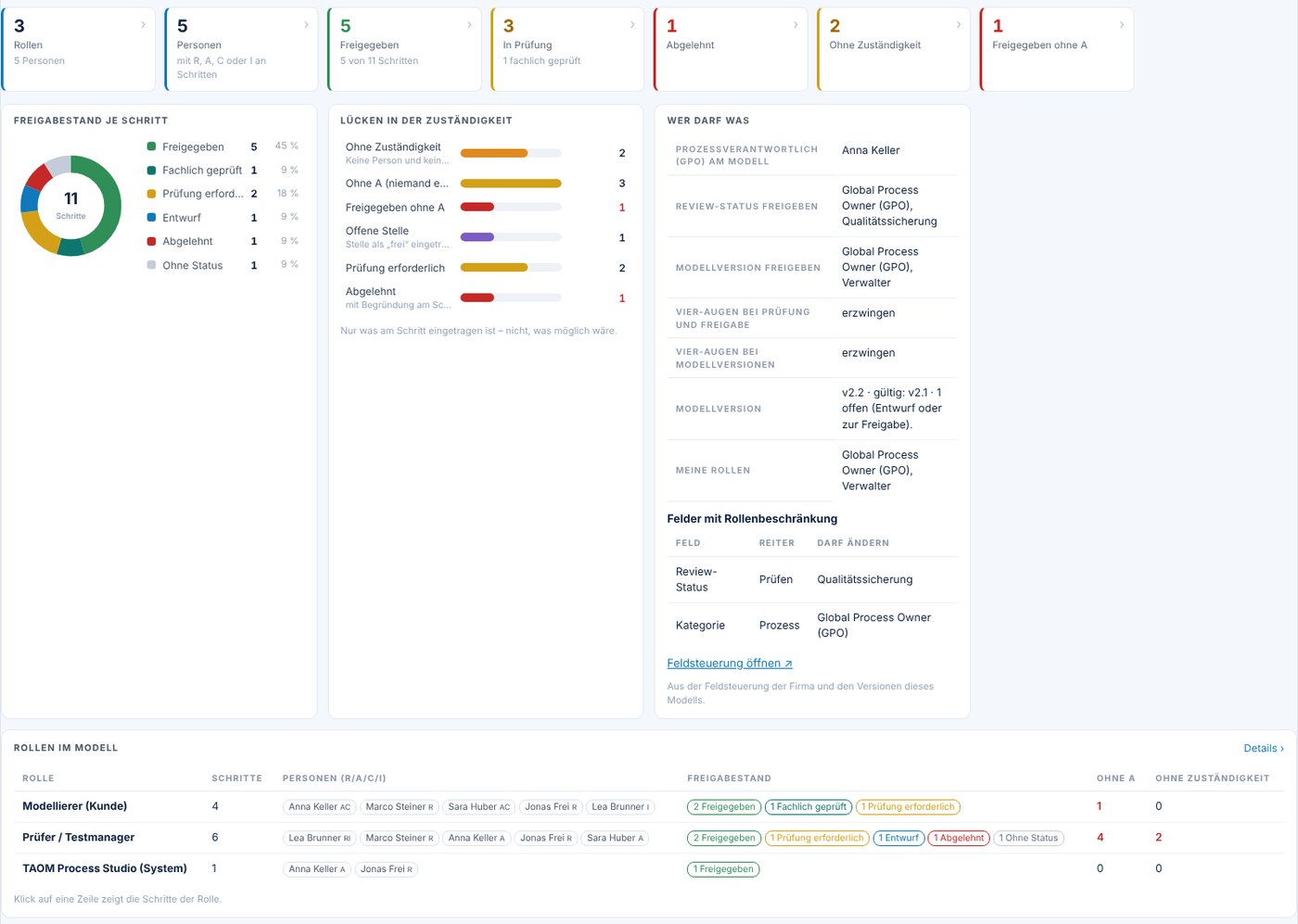
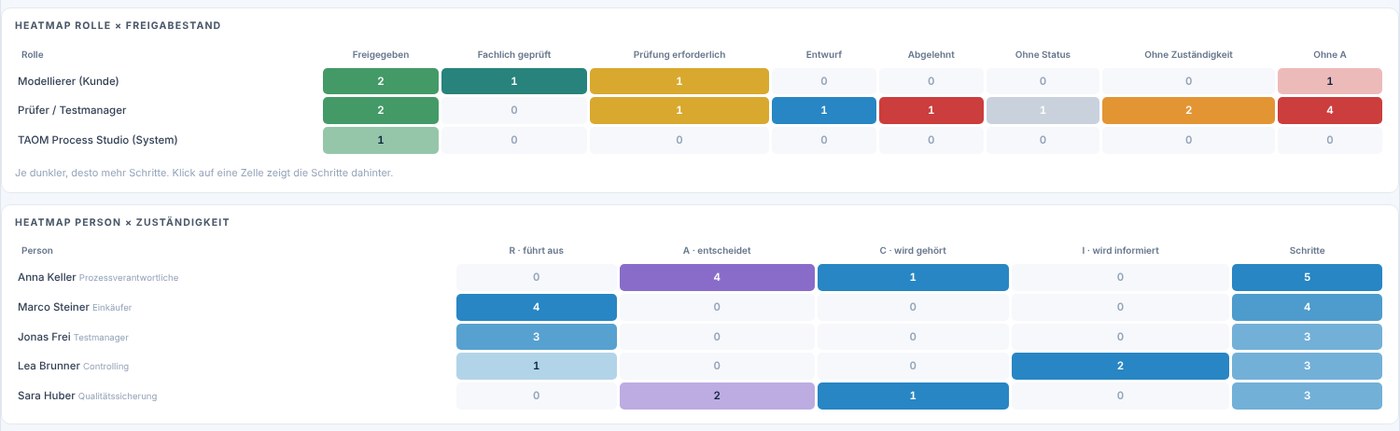
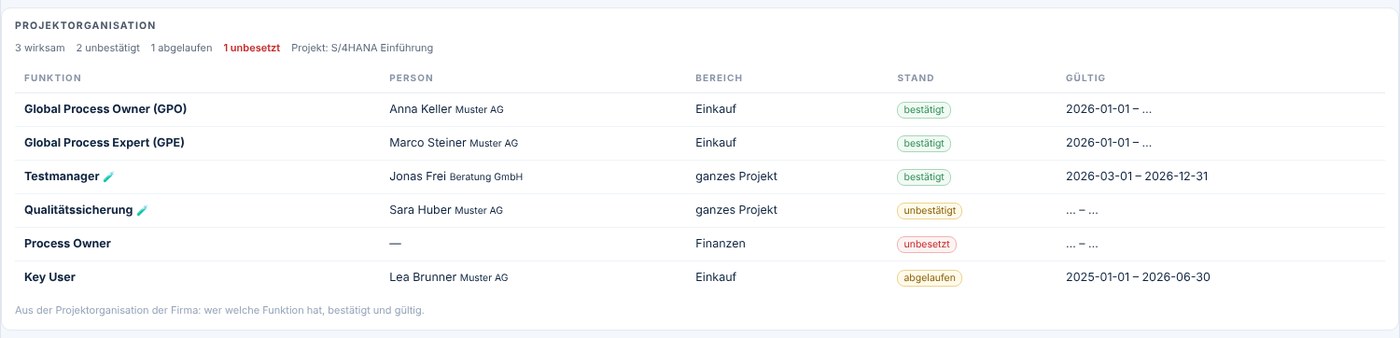
Screenshots from TAOM Process Studio with sample data. Click an image to enlarge it.
My tasks – per person or role
In the “Tasks” tab of reporting, you enter a name, a role or a function – or simply “Me”. TAOM shows what is pending: open approvals, rejected steps to rework, open tests and model versions for approval. Every row leads straight to the step or test case.
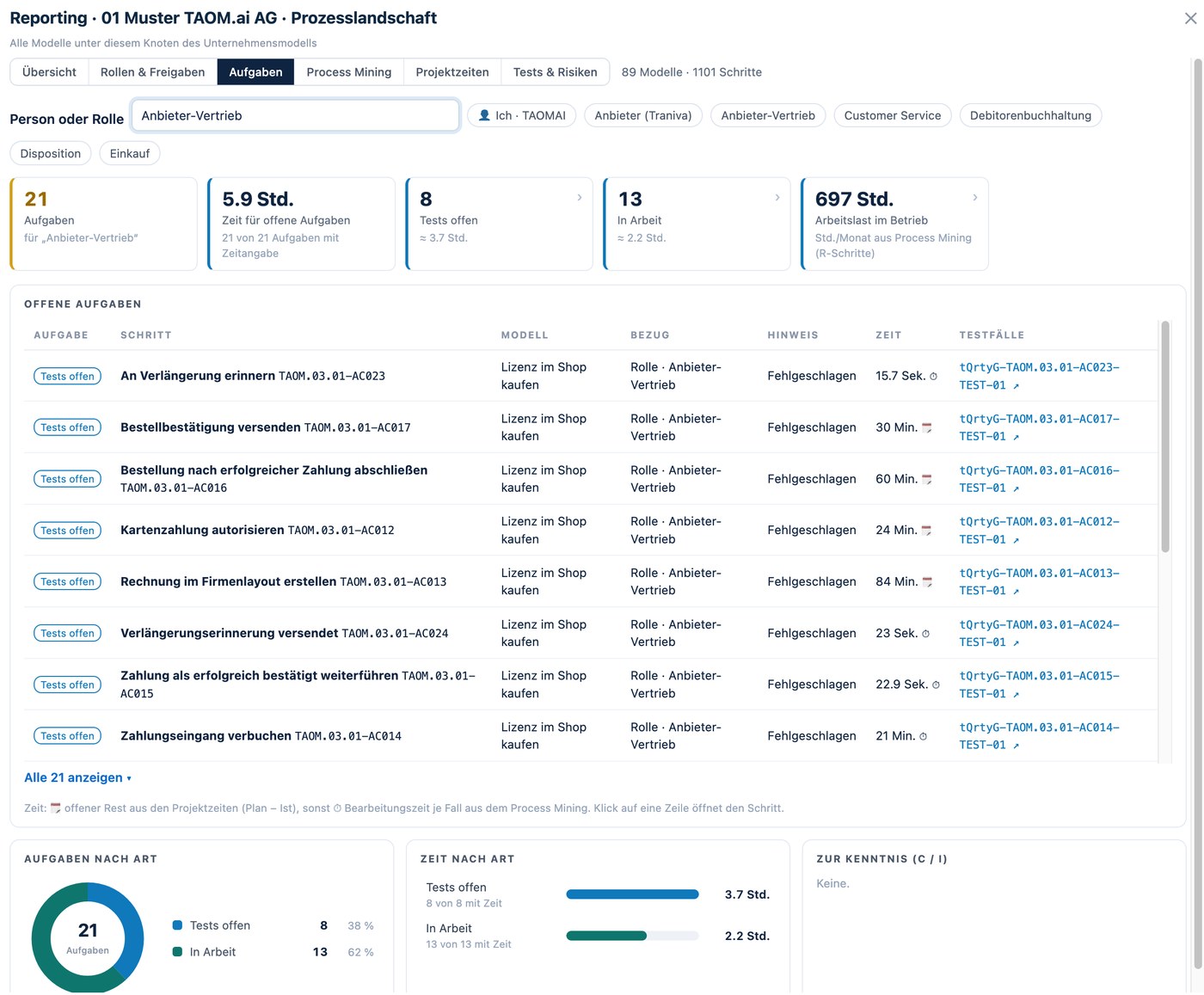
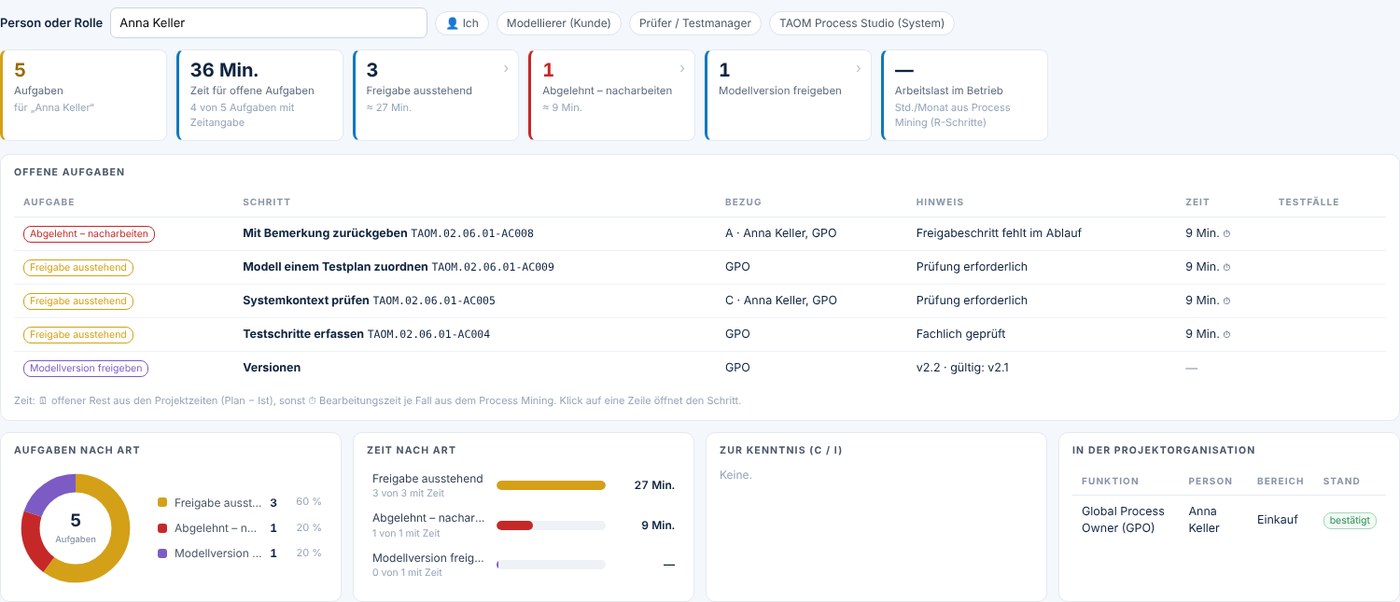
Screenshots from TAOM Process Studio with sample data. Click an image to enlarge it.
Next: permissions in Process Mining – who had which role when a step was edited, reviewed or approved.
Answered briefly
Can a customer adopt TAOM’s default without setting anything?
Yes. The matrix is ready for every customer when the licence is purchased. Anyone who changes nothing works with the template.
What happens if a mandatory field is empty?
Saving always works. When publishing, TAOM asks (default); when approving, it is not allowed (default). The administrator can change both.
Is this related to GxP?
Yes. The four-eyes principle, logged approvals and unchangeable identifiers are the basis for evidence in regulated environments – see Testing and verification.
Rules that everyone can see.
Field control applies to all registered users of Process Studio.